Print a presentation in black and white or grayscale
You can print your entire presentation — the slides, outline, notes pages, and audience handouts — in color, grayscale, or pure black and white. Most often, however, you will probably choose to print in either black and white or grayscale.
A Green Idea... 
Before printing handouts or slides, consider placing the presentation in a shared location. Just prior to the delivery time, advise viewers of the location and those who require hard copies, can print and bring them to the presentation delivery meeting. This can help to conserve paper and printer ink.
And, if you want to print your notes pages, consider viewing your notes in Presenter View. You can view your notes electronically as you deliver your presentation on a second monitor. For more information, see View your speaker notes privately while delivering a presentation on multiple monitors.
In this article
Overview of printing in black and white or grayscale
Most presentations are designed to be shown in color, but slides and handouts are typically printed in black and white or shades of gray (grayscale). When you print in grayscale, you get an image that contains variations of gray tones between black and white.
When you choose to print, Microsoft Office PowerPoint 2007 sets the colors in your presentation to match your selected printer's capabilities.
To check what the printout will look like, view it in print preview before you print it. With print preview, you can see how your slides, notes, and handouts will look in pure black and white or in grayscale, and you can adjust the appearance of the objects before you print them.
You can also make certain changes when you preview before printing. You can select:
-
What you want to print: the presentation, handouts, notes pages, or just the outline
-
A layout for handouts
-
Orientation (portrait or landscape) for handouts, notes pages, or an outline
-
Header and footer options
In a presentation, grayscale and black-and-white objects appear on the screen and in print as listed in the table.
| Object | In grayscale/ |
| Text | Black/Black |
| Text shadows | Grayscale/Hidden |
| Embossing | Grayscale/Hidden |
| Fills | Grayscale/White |
| Frame | Black/Black |
| Pattern fills | Grayscale/White |
| Lines | Black/Black |
| Object shadows | Grayscale/Black |
| Bitmaps | Grayscale/Grayscale |
| Slide backgrounds | White/White |
| Charts | Grayscale/Grayscale |
Note: Bitmaps, clip art, and charts show and are printed in grayscale, even when you set the printer properties to print in pure black and white.
Set the properties for printing in black and white
-
On the View tab, in the Color/Grayscale group, click Pure Black and White.
-
At the top of the PowerPoint window, on the Ribbon, which is a part of the Microsoft Office Fluent user interface , click the Black and White tab.
-
On the Black and White tab, in the Setting group, click the settings that you want.
Note: You can apply different grayscale or black-and-white settings to different objects (and to the background) on the same slide. Select the object for which you want to set grayscale or black-and-white settings, and then set the properties on the View menu. Do not make a selection when you want to specify the grayscale and black-and-white settings for the background, and then set the properties on the View menu.
Set the properties for printing in grayscale
-
On the View tab, in the Color/Grayscale group, click Grayscale.
-
At the top of the PowerPoint window, on the Ribbon, click the Grayscale tab.
-
On the Grayscale tab, in the Setting group, click the settings that you want.
Note: You can apply different grayscale or black-and-white settings to different objects (and to the background) on the same slide. Select the object for which you want to set grayscale or black-and-white settings, and then set the properties on the View tab. If you want to set the properties for the slide background, do not select any object on the slide.
Print a presentation in black and white or grayscale
-
Click the Microsoft Office Button
 , click the arrow next to Print, and then click Print Preview.
 -
In the Print group, click the arrow under Options, point to Color/Grayscale, and then click either Pure Black and White or Grayscale.
-
Grayscale This setting prints the handout in grayscale. Some colors, such as a background fill, are shown in white to heighten their legibility. (Sometimes, this looks the same as Pure Black and White.)
-
Pure Black and White This setting prints the handout with no gray fills.
-
-
In the Print group, click Print.
Notes:
-
To change the properties for printing in grayscale or black and white, see Set the properties for printing in black and white or Set the properties for printing in grayscale.
-
You can apply different grayscale or black-and-white settings to different objects on the same slide.
-
This process does not change the colors or design in the original color presentation.
-
When you print in grayscale or black and white, the background may not be printed if it interferes with the slide contrast.
-





 > Invite others.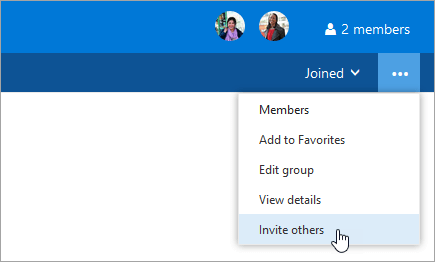
 > Invite others.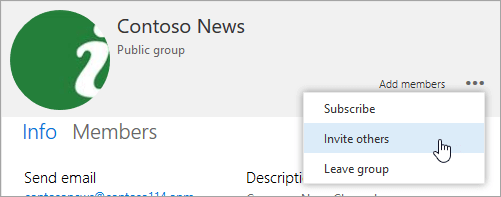
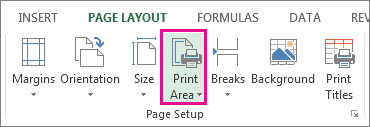
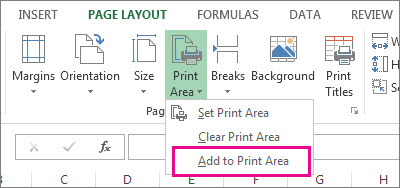
 > Message options and select Encrypt this message (S/MIME). You will then be prompted to install the S/MIME control.
 > S/MIME settings where you will find two options that you can select to digitally encrypt or digitally sign every message you send.
 in the message list or reading pane indicates an encrypted message.
 in the message list or reading pane indicates a digitally signed message.
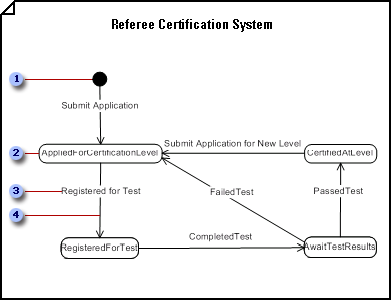
 The initial state is the state of an object before any events in the diagram have acted upon it.
  A state represents an instant in the life of an object. Double-click a State shape to add a name and list its internal actions and activities.
  TransitionsTransitions indicate that, in response to an event, an object will go from one state to another and perform an action.
  The event which triggers the transition is named in the transition string. Double-click a transition to label it with a string that, in addition to an event signature, can also include a guard condition, an action expression, and more.
 on the same state shape.