Monday, April 30, 2018

Add an app for Office to an Access app
Add an app for Office to an Access app
| Important Microsoft no longer recommends creating and using Access web apps in SharePoint. As an alternative, consider using Microsoft PowerApps to build no-code business solutions for the web and mobile devices. |
One way to spice up your Access web app is to add an app for Office. You can use an app for Office to display the data in your app visually, such as on a map, in a chart, or in a graph. To add an app for Office to an Access web app, you need to have site owner permission to the site and you need to be in a List view or a Blank view of your app when you look at your Access web app in a browser.
Important: New name for apps for Office - Office Add-ins. We are currently updating our products, documentation, samples, and other resources to reflect the platform name change from "apps for Office and SharePoint" to "Office and SharePoint Add-ins". We made this change to better distinguish the extension platform from Office apps (applications).
-
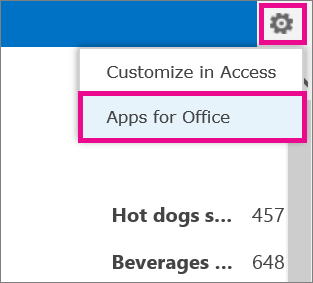
With your Access web app open in your browser, click Settings > Apps for Office.
-
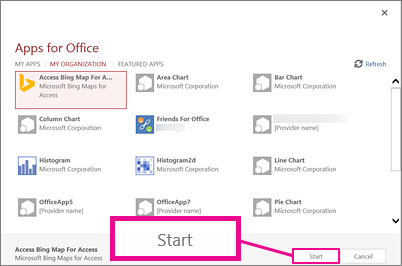
In the Apps for Office dialog box, select a category such as My Organization, select the app for Office you want to add, and click Start.
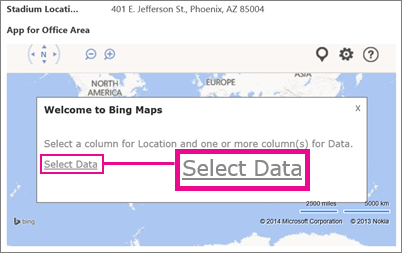
The app for Office will appear in your Access web app and will contain a message telling you to select data to display.
-
To hook up the app for Office to data in your Access web app, click Select Data (or Series Data) in the app for Office. (Point to the labels in the app for Office to see how to specify the data.)
-
In the Choose the data for this App dialog box, select which fields of data from your Access web app that you want the app for Office to display, and then click OK.
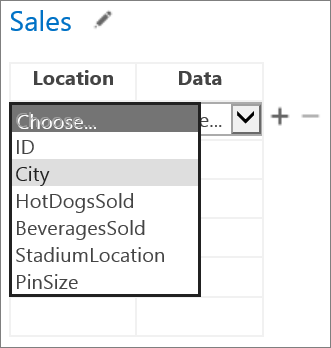
Tip: Use the plus (+) or minus (-) icons next to the binding table to add or remove fields. Use the pencil icon next to the name of your table (Sales in this example) to select a different table from your web app to bind this app for Office to.
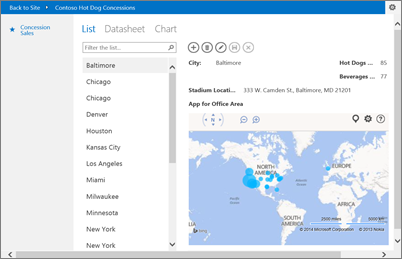
When you're finished, you'll see the data from your web app displayed in the app for Office within your Access web app. Here's an example of the Bing Maps app for Office from the above example:
Notes:
-
The My Apps category is for apps you've used before, My Organization is for apps in your App Catalog, and Featured Apps is for apps in the Office Store.
-
You add and hook up an app for Office from the browser and after that the app for Office behaves like a control. To resize or remove your app for Office, open your Access web app in Access (Settings > Customize in Access).
Help for Management Reporter (PerformancePoint Server 2007)
Help for Management Reporter (PerformancePoint Server 2007)
Are you looking for help for PerformancePoint Management Reporter?
Microsoft Office PerformancePoint 2007 Management Reporter, which was originally part of Microsoft Office PerformancePoint Server 2007, is now part of the Microsoft Dynamics ERP product family.
To view Help content about Management Reporter, see Management Reporter for Microsoft Dynamics ERP.
SQRT function
SQRT function
Returns a positive square root.
Syntax
SQRT(number)
Number is the number for which you want the square root.
Remark
If number is negative, SQRT returns the #NUM! error value.
Examples
| Formula | Description (Result) |
| =SQRT(16) | Square root of 16 (4) |
| =SQRT(-16) | Square root of 16. Because the number is negative, an error is returned (#NUM!) |
| =SQRT(ABS(-16)) | Square root of the absolute value of the number (4) |
UML Local Invocation Properties dialog box (Local Invocation category)
UML Local Invocation Properties dialog box (Local Invocation category)
Name
Type a name for the local invocation.
Stereotype
Choose the stereotype you want from the drop-down list. If a stereotype you want to use isn't listed, you can add a new stereotype or edit an existing one by clicking Stereotypes on the UML menu.
Operation
Choose the operation being dispatched by the local invocation.
Documentation
Type any documentation you want to add to the element as a tagged value. When you select the shape or icon representing the element, the documentation you type here also appears in the Documentation window.
End of support for Office 2007
End of support for Office 2007
Support for Office 2007 ended on October 10, 2017 All of your Office 2007 apps will continue to function. However, you could expose yourself to serious and potentially harmful security risks. Upgrade to a newer version of Office so you can stay up to date with all the latest features, patches, and security updates.

End of support for Office 2007
End of support for Office 2007
Support for Office 2007 ended on October 10, 2017 All of your Office 2007 apps will continue to function. However, you could expose yourself to serious and potentially harmful security risks. Upgrade to a newer version of Office so you can stay up to date with all the latest features, patches, and security updates.