Sunday, December 31, 2017

Create a report with the Report Wizard

Create a report with the Report Wizard

Steps for using the Report Wizard

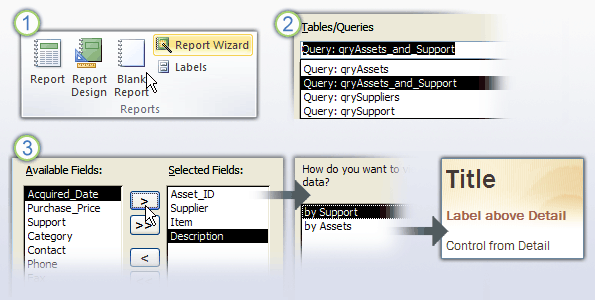
The Report Wizard is a fast way to create a report with a large number of fields and a complex layout.

Click the Create tab, and in the Reports group, click Report Wizard.

Complete the wizard. As part of that, you select a data source, and then ...

Select the fields you want to use, grouping options, a style, and more.

Topic 7 of 10

Previous | Next

(Back to Start)

Bypass startup options when you open a database

Bypass startup options when you open a database

You can set new startup options for a Current Database from the Access Options dialog box, or by creating an AutoExec macro, or by an Open event procedure. But sometimes, when you open a Microsoft Access 2013 database, you might want to bypass those settings.

To bypass all startup options, complete the following step:

  • Hold down the SHIFT key while opening your database.

Depending on the macro security settings for your database, you might see one or more security messages on startup.

Note: You must continue to hold down the SHIFT key while you close all the security messages, or the startup options are not bypassed.

Prevent others from bypassing startup options

You can prevent other users from bypassing startup options. Disable the Bypass (SHIFT) key by using Visual Basic for Applications (VBA) code to set the AllowBypassKey property to False.

The AllowBypassKey property uses these settings.

Setting

Description

True

Enable the SHIFT key to allow the user to bypass the startup properties and the AutoExec macro.

False

Disable the SHIFT key to prevent the user from bypassing the startup properties and the AutoExec macro.

To set the AllowBypassKey property by using a macro, you must create the property in the following way:

  • In a Microsoft Access database (.mdb or .accdb), you can add the property by using the CreateProperty method and then appending it to the Properties collection of the Database object.

  • In a Microsoft Access project (.adp), you can add the property to the AccessObjectProperties collection of the CurrentProject object by using the Add method.

The AllowBypassKey property's setting doesn't take effect until the next time that the application database opens.

Top of Page

UML Attribute Link Properties dialog box (Attribute Link category)

UML Attribute Link Properties dialog box (Attribute Link category)

Name

The name of the attribute link is the same as the name of the attribute from the class of which the object is an instance. The UML Model Diagram template automatically provides the name and you cannot change it.

Stereotype

Choose the stereotype you want from the drop-down list. If a stereotype you want to use isn't listed, you can add a new stereotype or edit an existing one by clicking Stereotypes on the UML menu.

Type

Displays the type of attribute link. The UML Model Diagram template automatically provides the name and you cannot change it.

Value

Type a value expression for the attribute link. The value is not interpreted and can be used to represent one or more values for an attribute.

Documentation

Type any documentation you want to add to the element as a tagged value. When you select the shape or icon representing the element, the documentation you type here also appears in the Documentation window.

Print rows with column headers on top of every page

Print rows with column headers on top of every page

If you're familiar with using column headers or titles in Excel, you might be interested in knowing how to set up and print them in Excel Online.

Printing a worksheet on multiple pages works differently in Excel Online from Excel desktop application. If you want to include column headers on each printed page, you'll need to set that up manually by opening the worksheet in Excel, setting up the page and printing from Excel.

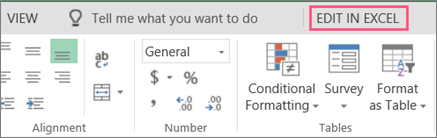
Open in Excel button

We are updating Excel Online. Stay informed about feature updates by visiting the Microsoft Excel blog.

Excel Online works seamlessly with the Office desktop program. Try or buy the latest version of Office.

OneDrive Basics

OneDrive Basics

Your browser does not support video. Install Microsoft Silverlight, Adobe Flash Player, or Internet Explorer 9.

Get oriented to the OneDrive website, where you'll see three areas: the navigation pane, the file list, and the toolbar.

This video is part of a series of short OneDrive videos.

Insert or attach files to notes

Insert or attach files to notes

The notebooks you create in OneNote let you collect and keep all kinds of information in one place. Inserting information from other sources is a great way to save time. Instead of retyping information or relying on links to documents and files that may become unavailable when you go offline, you can bring the content you need directly into OneNote — either as an attachment or as a printout that you can annotate.

Attach a file

Attaching a file (such as a Microsoft Word document) to a page in OneNote places a copy of that file in your notes. The file appears as an icon that you can double-click to open and edit the contents of the file.

  1. In OneNote, click anywhere on the page where you want to insert a file.

  2. Click Insert > File Attachment.

    Insert a file into your notes as an attachment

  3. In the Choose a Document to Insert dialog box, click the file you want to attach, and then click Insert.

  4. If prompted for additional options, click Attach File. 

    A copy of the file is inserted on the current page and shown as an icon that you can open.

Attached files are stored as part of their associated notebook. If you move a notebook to another location, any inserted files move with the notebook. 

Important: OneNote attaches only static snapshots of the source documents or files you insert into your notes; it doesn't maintain a link to the source file. Changes you make to the copy in OneNote won't show up in the original. And changing the original won't update the copy.

It's possible to embed two types of Microsoft Office files into OneNote that maintain a relationship between their embedded version and their source files: You can add an Excel spreadsheet to a page or add a Visio diagram to a page.

Insert a file as a printout

Inserting a file as a printout places a picture of its contents on a page in OneNote. You can't edit printouts like regular notes, so they're a good choice if you want to keep the original formatting. The inserted printouts work just like inserted pictures. You can resize them and move them anywhere on the page.  You can add notes or annotations to the image, and even copy text from a file printout and paste it as editable text.

  1. In OneNote, click anywhere on the page where you want to insert a file printout.

  2. Click Insert > File Printout.

  3. In the Choose a Document to Insert dialog box, click the file you want to insert, and then click Insert. 

Note: If you want to insert a password-protected document, you'll need to enter the correct password before the document will be printed to OneNote.

Copy text from a file printout

You can extract text from a file printout and paste it in your notes. This is useful if you want to make changes to the text or if you want to copy any part of the text into an email or other file, like a Word document.

  1. Right-click the image, and then do one of the following:

    • Click Copy Text from this Page of the Printout to copy text from only the currently selected image (page).

    • Click Copy Text from All the Pages of the Printout to copy text from all the images (pages).

  2. Click where you'd like to paste the copied text, and then press Ctrl+V.

Note:  The effectiveness of OneNote's text recognition depends on the quality of the source formatting in the document or file you inserted. When pasting text that you copied from a picture or file printout, always look it over to make sure that your selection was recognized properly.

What do you want to do?

Attach a document or file

Insert a document or file as a printout

Attach a document or file

To keep a copy of any document or file as part of your notes, you can attach it to your notebook page. Double-clicking the attachment icon will open the document or file in its intended program (for example, a Word document attachment will open in Microsoft Office Word if it is installed on your computer).

  1. On the Insert menu, click Files.

  2. In the Choose a file or a set of files to insert dialog box, navigate to the location of the file that you want to insert, and then click to select it. (To select multiple files, hold down the CTRL key while you click to select additional files.)

  3. Click Insert. A copy of the file is inserted on the current page and shown as an icon that you can double-click to open or view the document or file.

Note: OneNote attaches a copy of the source document or file. OneNote does not maintain a link to the source file. If the source file is updated later, those changes will not appear in the copy you attached.

Top of Page

Insert a document or file as a printout

When you want to insert information from other files on your computer without attaching or linking to the files, you can insert a picture or "printout" of the information by using the OneNote printer driver. Instead of actually printing the file onto paper, the printer driver sends the printout to your notebook electronically. You can position the printout anywhere on a page. You can't open and edit the printout as if it were the source file, but you can copy text from the printout and paste it anywhere for editing. You can also annotate the printout pictures with additional notes by typing or writing over them.

  1. On the Insert menu, click Files as Printouts.

  2. In the Choose Document to Insert dialog box, navigate to the location of the file that you want to insert, and then click to select it. (To select multiple files, hold down the CTRL key while you select the files.)

  3. Depending on the type of file you are inserting, OneNote will attempt to launch the source program for the file and then print its contents directly to the current notebook page as a picture.

Note: If you are trying to insert a document that is password-protected, you must enter the correct password before the document can be inserted into OneNote.

Reposition a file printout picture on the page

By default, each page of an inserted document or file is placed in your notes as a separate picture. You can move inserted printout pictures wherever you want them.

  1. Select the picture by moving the pointer over it and then clicking the dashed blue border or the picture handle alongside the picture.

  2. Click and drag the picture to a new location.

Copy text from a file printout picture

Unlike most programs, OneNote allows you to copy text from an inserted "print" image and paste it elsewhere for editing.

  1. Right-click the printout image, and then do one of the following:

    • Click Copy Text from this Page of the Printout to copy the text from only the currently selected printout picture.

    • Click Copy Text from All the Pages of the Printout to copy the text from all of the pages of an inserted printout picture.

  2. Navigate to the page in your notebook (or to another program) where you want to paste the text, and then press CTRL+V to paste the copied text.

Top of Page
Distribute the contents of a cell into adjacent columns

Distribute the contents of a cell into adjacent columns

You can split the contents of one or more cells in a column, and then distribute those contents as individual parts across other cells in adjacent columns. For example, if your worksheet contains a column of full names, you can split that column into separate first name and last name columns.

  1. Select the cell, range, or entire column that contains the text values that you want to split.

    Note: A range that you want to split can include any number of rows, but it can include no more than one column. You also should keep enough blank columns to the right of the selected column to prevent existing data in adjacent columns from being overwritten by the data that will be distributed. If necessary, you can insert blank columns.

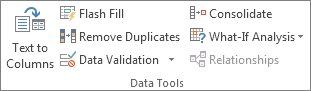
  2. On the Data tab, in the Data Tools group, click Text to Columns.

    Data Tools group on the Data tab

  3. Follow the instructions in the Convert Text to Columns Wizard to specify how you want to divide the text into columns.

Note: For help with completing all the steps of the wizard, see the topic, Split text into different columns with the Convert Text to Columns Wizard, or click Help button image in the Convert to Text Columns Wizard.

Tip: For an alternative method of distributing text across columns, see the article, Split text among columns by using functions.

Tip: You can combine cells with the CONCAT function or the CONCATENATE function.

Top of Page

See Also

Overview of formulas in Excel

How to avoid broken formulas

Find and correct errors in formulas

Excel keyboard shortcuts and function keys

TEXT functions (reference)

Excel functions (alphabetical)

Excel functions (by category)