Tuesday, June 1, 2021

Explore your data in a 3d maps tour

A Microsoft 3D Maps tour can show a time-based relationship between geographic locations and their associated data—such as population numbers, temperature highs or lows, or flight arrival delays.

When you start 3D Maps from a workbook that doesn't already contain a tour, a new tour with a single scene is automatically created. Tours and scenes are the basic way to save the 3D Maps visualizations of your data.

You can create as many tours as you want in a workbook. You switch between tours and create new tours by using the Launch 3D Maps box. This example has three tours that show world population by continent.
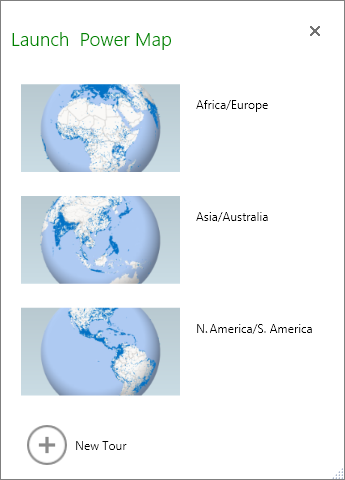
Launch Power Map

Create a tour

  1. Select any cell in the Excel table or range of cells that has your data. Be sure to do this before you create the tour; it makes it easier for you to hook up the data to the new tour.

  2. Click Insert > 3D Map > Open 3D Maps.

    The Launch 3D Maps window appears, showing your new tour.

Add another tour to your workbook

  1. Select any cell in the Excel table or range of cells that has your data. Be sure to do this before you create the tour; it makes it easier for you to hook up the data to the new tour.

  2. Click Insert > 3D Map > Open 3D Maps.

    The Launch 3D Maps box appears.

  3. Click New Tour.

    The new tour appears in the Launch 3D Maps window. If another tour was already open, 3D Maps closes it.

Save your tours

There's no Save button in 3D Maps; all tours and scenes are preserved in the state in which you close the window. When you save your workbook, any 3D Maps tours and scenes are saved with it.

All changes you make to a scene in 3D Maps while editing are saved automatically, but any changes you make to a scene in tour playback mode—such as resizing, removing a legend, or removing a timeline—aren't saved. All tours open in edit mode by default, and all the scenes in a tour are shown in the Tour Editor pane.

Add a scene to a tour

A tour can have a single scene, or multiple scenes that play sequentially to show different views of your data, such as highlighting a section of a map, or showing other data related to the geographic locations. For example, the first scene in your tour could show population growth for cities over time, followed by a scene showing the number of public swimming pools in those cities over the same time period, followed by more scenes that show other information about those cities. This example shows a four-scene tour for a selection of cities in the U.S. Southwest region.
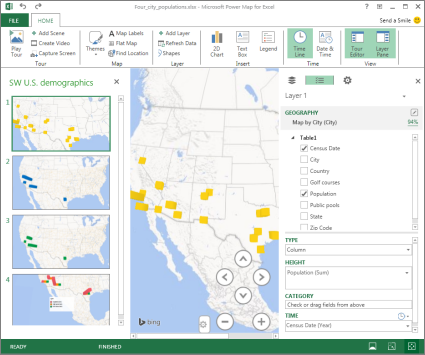
Tour Editor task pane

Play a tour

3D Maps always plays a tour in full-screen mode. Playback buttons are available at the bottom of the screen.
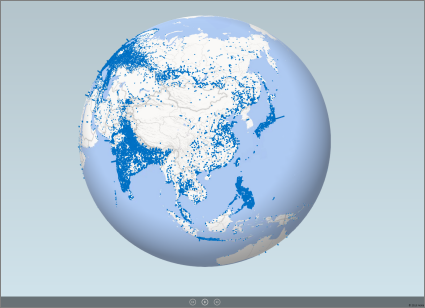
Tour in fullscreen playback mode

  1. Open the tour from the Launch 3D Maps box.

  2. In the 3D Maps window, on the Home tab, click Play Tour.

You can pause, play, move to the previous or next scene, or go back to edit mode. When you pause the tour, you can explore the 3-D environment and interact with it. Any changes you make in play mode aren't saved as part of the scene. Once you resume playback or go back to edit mode, the changes you made in play mode are lost.

Note: The Play Tour button always plays the tour beginning with the first scene. You can navigate to the scene you want with the Next and Previous buttons in Play mode.

Delete a tour

Note: The Undo command in Excel can't restore a tour you've just deleted.

  1. In the workbook, click Insert > 3D Map > Open 3D Maps.

  2. Right-click the tour, and click Delete.

Copy a tour

In the Launch 3D Maps box, right-click a tour and click Duplicate. This creates a new tour that you can fine tune, while leaving the original tour untouched.


Learn more about working with 3D Maps

Supported platforms for lync web app

To use Lync Web App, you'll need a supported operating system and browser. For details about the various operating systems and browsers that are supported, along with any limitations, see the TechNet article Lync Web App Supported Platforms.

I can t send or receive messages with outlook for mac

Message service can be interrupted for several reasons. These are the most common problems.

Cause: Outlook doesn't have a connection to the Internet or your network.

Solution:    Make sure that your computer is connected to the Internet or your network.

Use a web browser to see if you can access web sites. On a local network, see if you can access intranet sites. For information about checking the status of your network connections, see Mac OS Help.

Solution:    Verify that Outlook is online. On the Outlook menu, make sure that Work Offline is not checked.

Cause: Some POP and IMAP email accounts use an outgoing mail (SMTP) server that requires authentication.

Solution:    Turn on SMTP authentication for the POP or IMAP account.

Some email services require authentication for their SMTP server. If you verify that your account settings are correct, but you still can't send messages, try turning on SMTP authentication.

  1. On the Tools menu, click Accounts.

  2. In the left pane of the Accounts box, select the account.

  3. Under Outgoing server, click More Options.

  4. On the pop-up menu, select the authentication type, and then enter your credentials as necessary.

Cause: Your ISP or network has a firewall that blocks connections to your email service's outgoing mail (SMTP) server.

Solution:    See if your ISP or network administrator can provide an alternative SMTP server to use for your POP or IMAP account.

If you have the address of an alternative SMTP server, enter it in your account settings.

  1. On the Tools menu, click Accounts.

  2. In the left pane of the Accounts box, select the account.

  3. In the Outgoing server box, enter the server name or address.

    Note: If you use a laptop in multiple locations, the SMTP server that you use in one location may not work in others. Each Internet connection that you use may have a firewall with its own restrictions.

Cause: Your credentials or account settings are incorrect.

Solution:    Verify that your account user name, password, and other settings are correct in your account preferences.

  1. On the Tools menu, choose Accounts.

  2. In the left pane of the Accounts box, select the account.

  3. Make sure you have entered the correct email address, user name, and password.

    Note: If your account still does not work properly, check with your email service provider for details about how to configure your account in a mail application. Your account may require that you use special settings such as Secure Sockets Layer (SSL) to connect, or that you override the default port. 

Cause: Your network requires a proxy server to connect with the mail server.

Solution:    Specify a mail proxy server in your computer's System Preferences.

If you use a network to connect to the Internet, you might have to specify a mail proxy server. Ask your network administrator for the correct settings for your mail proxy server. For instructions about how to enter these settings, see Mac OS Help.

Cause: Your email server is unavailable.

Solution:    Make sure the mail server is online.

If you successfully connected to the account before, the mail server might be offline. Contact your email provider or network administrator to see whether the mail server is available.

Related information

Outlook for Mac: I'm not receiving email or other items in my Exchange account

Helpful links

Upload and share files

Your browser does not support video.

Try it!

Upload and share files to work with others in Microsoft Teams.

Attach a file from a channel

  1. In a channel, under a message box, select Attach files. Select how you want to attach it:

    • Recent: Attach recent files. 

    • Browse Teams and Channels: Attach files from a team or channel.

    • OneDrive: Select single or multiple files from a OneDrive for Business account.

    • Upload from my computer: Upload files from your device.

  2. Select a file > Open.

  3. If you'd like, add a message and @mention someone in your post.

  4. Select Send.

Upload a file to the Files tab

Every channel has a Files tab. You'll find everything that's been shared there.

  1. Select Upload > Files or Folder.

  2. Choose your files.

Want more?

Share a file in Teams

Microsoft Teams Quick Start

Create a plumbing and piping plan

Plumbing and piping plans show the location of fixtures, pipes, and valves.

You can lay out plumbing plans on a blank page or as a layer in an existing floor plan.

Plumbing and piping plan

You can create a plumbing and piping plan in one of the three following ways:

On a blank page

  • In Visio 2016 and newer versions: Click Templates > Maps and Floor Plans, and then click Plumbing and Piping Plan > Create.

  • In Visio 2013: Click Categories > Maps and Floor Plans, and then click Plumbing and Piping Plan > Create.

  • In Visio 2010: Under Template Categories, click Maps and Floor Plans, and then click Plumbing and Piping Plan > Create.

  • In Visio 2007: On the File menu, point to New, point to Maps and Floor Plans, click Plumbing and Piping Plan and then click Create.

By default, this drawing type opens a scaled drawing page in landscape orientation Wide page . You can change these settings at any time.

As a layer in a CAD floor plan

  1. Create a Plumbing and Piping Plan on a blank page. See the previous section for information on creating one.

  2. On the Insert tab, click CAD Drawing.

  3. Locate the CAD file, select it, and then click Open.

  4. To accept the size and scale of the CAD drawing, click OK.

    Note: If the drawing scale of the CAD drawing is different from the scale of your drawing page, you will be asked to match the scales or continue without matching.

  5. After you insert the drawing, you can resize it, change its scale, or move it. You can also lock the Visio layer that contains the CAD drawing.

    Tip: To change the properties of an inserted CAD drawing, right-click the drawing, point to CAD Drawing Object on the shortcut menu, and then click Properties. For more information, see Change AutoCAD layer properties.

As a layer in an existing Visio floor plan

  1. On the File menu, click Open.

  2. In the Open dialog box, locate the drawing that you want to use. Select the file, and then click Open.

  3. From the Shapes pane, drag and drop plumbing fixtures, pipes, and valve shapes into the drawing.

    Drag selection handles, control handles, and endpoints.

    Tip: You can lock the existing layers of a drawing so that you do not accidentally change them when you create a new plan on top. For more information, see Lock or unlock a layer.

  4. Enter shape data. To do that:

    1. Right-click the shape, and select Data > Shape Data.

    2. In the Shape Data pane, click in each field and then type or select a value.

  5. Connect plumbing components with pipes. To do that:

    1. Drag pipe shapes onto the drawing page.

    2. Glue each end of the pipe shapes to connection points Connection point image - blue X on the other shapes.

    3. To resize a pipe, drag an endpoint.

  6. Label shapes by selecting them and typing. To reposition a label, drag the label's control handle.

Recover deleted notes in onenote for mac

OneNote for Mac lets you recover single pages or entire sections of notes that you have recently deleted. While viewing recently deleted notes, you can restore their pages or sections by moving them back to their original notebook or to another location you want.

OneNote keeps deleted notes for a period of 60 days, after which they are permanently erased.

View recently deleted notes

In any notebook, do the following:

  1. On the View tab, click the small arrow next to the Deleted Notes button, and then click View Deleted Notes.

  2. In the Deleted Notes view, click the tab of the deleted page or section that you want to look at.

  3. When done, exit this view by clicking Exit ( X ) to the right of the Deleted Notes section label.

Note: Pages and sections that have been deleted do not appear in the results list of a notebook search. To include such notes in a search, you must first restore them.

Restore recently deleted notes

While viewing any page or section in the Deleted Notes view, do the following:

  1. Control-click the tab of the page or section that you want to restore.

  2. On the menu that appears, click Restore To.

  3. Select the destination where you want to move the deleted notes, and then click Restore.

Note: When you restore a single page of notes from the Deleted Notes view, it is moved to the section in the notebook you choose. If you restore an entire section, it will be moved to the notebook you choose, along with all of the previously deleted pages in that section.

Permanently delete recently deleted notes

OneNote keeps deleted notes for a period of 60 days, after which they are permanently erased. You can do this manually at any time (for example, to remove confidential information from the deleted notes in a shared notebook) by doing the following:

  1. In the Deleted Notes view, Control-click the tab of the page or section that you want to permanently delete.

  2. On the menu that appears, click Delete permanently.

    Tip: As a safeguard, OneNote offers one more chance at recovery immediately after you do this. If you change your mind, press Command-Z on your keyboard to return the erased note to the Deleted Notes view, or click Undo Delete on the Edit menu.