Make your Outlook email accessible
This topic gives you step-by-step instructions to make your email messages accessible to people with disabilities.

People who are blind or have low vision can understand your emails more easily if you create them with accessibility in mind.
Windows: Best practices for making Outlook email accessible
The following table includes key best practices for creating Outlook email that is accessible to people with disabilities.
| What to fix | Why fix it | How to fix it |
| Include alternative text with all visuals and tables. Visual content includes pictures, clip art, SmartArt graphics, shapes, groups, charts, embedded objects, ink, and videos. | Alt text helps people who can't see the screen to understand what's important in images and other visuals. Avoid using text in images as the sole method of conveying important information. If you must use an image with text in it, repeat that text in the document. In alt text, briefly describe the image and mention the existence of the text and its intent. | |
| Add meaningful hyperlink text and ScreenTips. | People who use screen readers sometimes scan a list of links. Links should convey clear and accurate information about the destination. For example, instead of linking to the text Click here, include the full title of the destination page. Tip: You can also add ScreenTips that appear when your cursor hovers over text or images that include a hyperlink. | |
| Ensure that color is not the only means of conveying information. | People who are blind, have low vision, or are colorblind might miss out on the meaning conveyed by particular colors. For example, add an underline to color-coded hyperlink text so that people who are colorblind know that the text is linked even if they can't see the color. For headings, consider adding bold or using a larger font. | |
| Use sufficient contrast for text and background colors. | The text in your email should be readable in High Contrast mode so that everyone, including people with visual disabilities, can see it well. For example, use bright colors or high-contrast color schemes on opposite ends of the color spectrum. White and black schemes make it easier for people who are colorblind to distinguish text and shapes. | |
| Use a larger font size (11pt or larger), sans serif fonts, and sufficient white space. | People who have dyslexia describe seeing text "swim together" on a page (the compressing of one line of text into the line below). They often see text merge or distort. For people who have dyslexia or have low vision, reduce the reading load. For example, they may benefit from familiar sans serif fonts such as Arial or Calibri. Avoid using all capital letters and excessive italics or underlines. Include ample white space between sentences and paragraphs. | |
| Use built-in headings and styles. | To preserve tab order and to make it easier for screen readers to read your email, use a logical heading order and the built-in formatting tools in Outlook. For example, organize headings in the prescribed logical order. Use Heading 1, Heading 2, and then Heading 3, rather than Heading 3, Heading 1, and then Heading 2. And, organize the information in your email into small chunks. Ideally, each heading would include only a few paragraphs. | |
| Use a simple table structure, and specify column header information. | Screen readers keep track of their location in a table by counting table cells. If a table is nested within another table or if a cell is merged or split, the screen reader loses count and can't provide helpful information about the table after that point. Blank cells in a table could also mislead someone using a screen reader into thinking that there is nothing more in the table. Screen readers also use header information to identify rows and columns. |
Add alt text to visuals and tables
The following procedures describe how to add alt text to visuals and tables in your Outlook email.
Note: We recommend only putting text in the description field and leaving the title blank. This will provide the best experience with most major screen readers including Narrator. For audio and video content, in addition to alt text, include closed captioning for people who are deaf or have limited hearing.
Add alt text to images
Add alt text to images, such as pictures, clip art, and screenshots, so that screen readers can read the text to describe the image to users who can't see the image.
-
Right-click an image.
-
Select Format Picture > Layout & Properties.
-
Select Alt Text.
-
Type a description and a title.
Tip: Include the most important information in the first line, and be as concise as possible.
Add alt text to SmartArt graphics
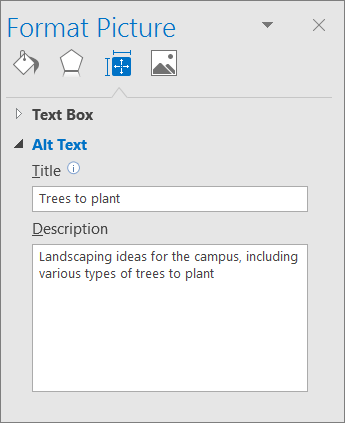
-
Right-click a SmartArt graphic.
-
Select Format Object > Shape Options > Layout & Properties.
-
Select Alt Text.
-
Type a description and a title.
Tip: Include the most important information in the first line, and be as concise as possible.
Add alt text to shapes
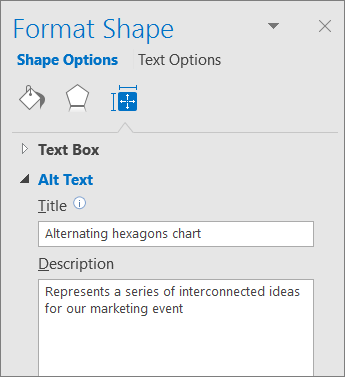
Add alt text to shapes, including shapes within a SmartArt graphic.
-
Right-click a shape.
-
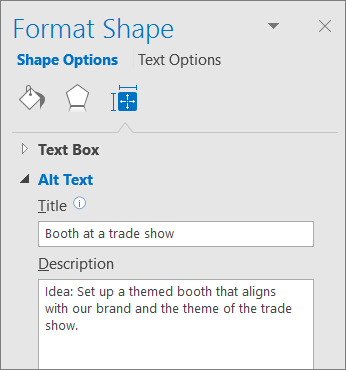
Select Format Shape > Layout & Properties.
-
Select Alt Text.
-
Type a description and a title.
Tip: Include the most important information in the first line, and be as concise as possible.
Add alt text to charts
-
Right-click a chart.
-
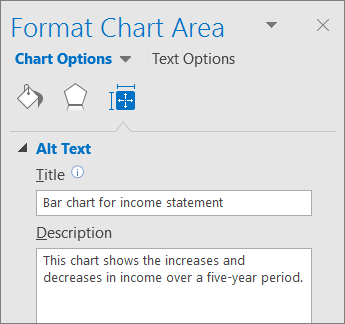
Select Format Chart Area > Chart Options > Layout & Properties.
-
Select Alt Text.
-
Type a description and a title.
Tip: Include the most important information in the first line, and be as concise as possible.
Add alt text to tables
-
Right-click a table.
-
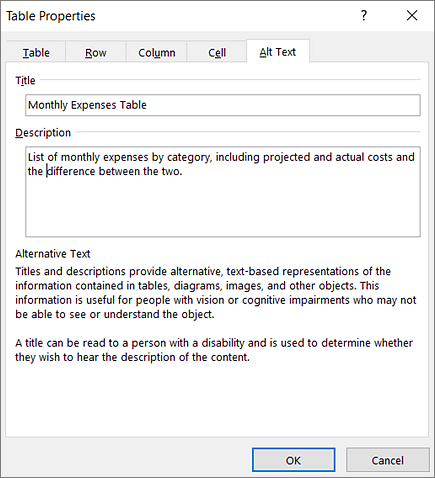
Select Table Properties.
-
Select the Alt Text tab.
-
Type a description and a title.
Tip: Include the most important information in the first line, and be as concise as possible.
Make hyperlinks, text, and tables accessible
The following procedures describe how to make the hyperlinks, text, and tables in your Outlook email accessible.
Add hyperlink text and ScreenTips
-
Select the text to which you want to add the hyperlink, and then right-click.
-
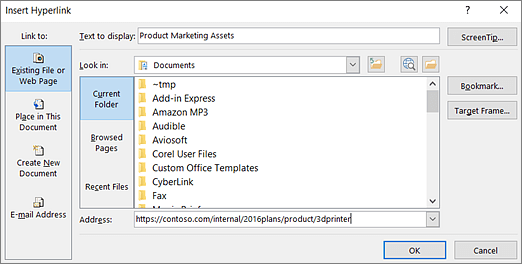
Select Hyperlink. The text you selected displays in the Text to display box. This is the hyperlink text.
-
If necessary, change the hyperlink text. In the Address box, type the destination URL.
-
Select the ScreenTip button and, in the ScreenTip text box, type a ScreenTip.
Tip: If the title on the hyperlink's destination page gives an accurate summary of what's on the page, use it for the hyperlink text. For example, this hyperlink text matches the title on the destination page: Templates and Themes for Office Online.
Use accessible font format
-
Select your text.
-
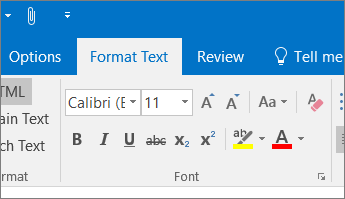
Select the Format Text tab.
-
In the Font group, which provides options for font type, size, style, and color, select your formatting choices.
Use accessible font color
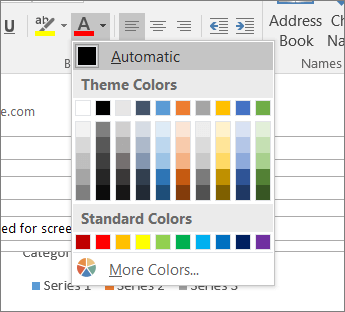
To ensure that text displays well in High Contrast mode, use the Automatic setting for font colors.
-
Select your text.
-
Select Message > Font Color.
-
Select Automatic.
Use bulleted list styles
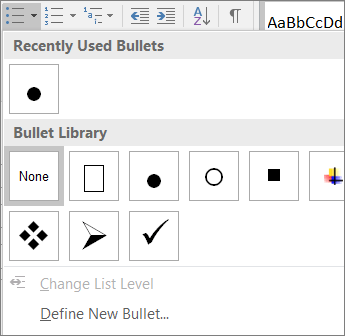
Create bulleted lists by using the Bullets button.
-
Position the cursor anywhere in your email.
-
Select the Format Text tab.
-
In the Paragraph group, select the Bullets button.
-
Type each bullet item in the bulleted list.
Use ordered lists
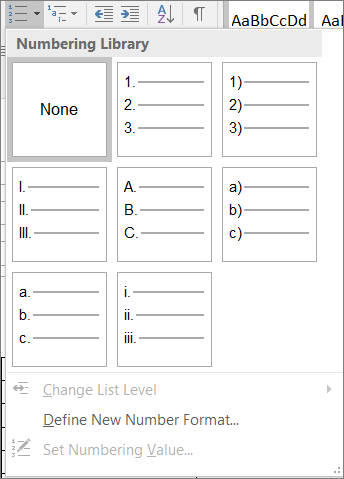
Create sequential steps by using the Numbering button.
-
Position the cursor anywhere in your email.
-
Select the Format Text tab.
-
In the Paragraph group, select the Numbering button.
-
Type the sequential steps.
Adjust space between sentences and paragraphs
Increase or decrease white space between sentences and paragraphs.
-
Select your text.
-
Select the Format Text tab.
-
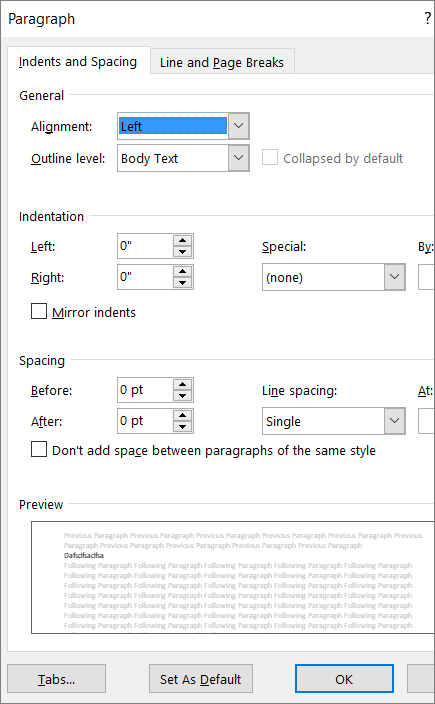
In the Paragraph group, in the lower-right corner of the group, select the Dialog box launcher.
The Paragraph dialog box opens, showing the Indents and Spacing tab. -
Under Spacing, select the spacing options you want.
Use table headers
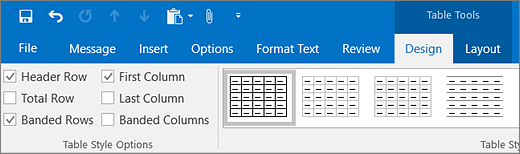
Specify a header row in a table.
-
Position the cursor anywhere in a table.
-
On the Table Tools Design tab, in the Table Style Options group, select the Header Row check box.
-
Type column headings.
Request an accessible email
Let a sender know that you prefer to receive accessible content.
-
To go to your account on the web, in Outlook, select File > Info, and then in Account Settings, click the link under Access this account on the web.
-
In Outlook on the web, to go to Accessibility Settings, select
 > Mail > General > Accessibility settings.
 -
To request accessible content, select the Ask senders to send content that's accessible checkbox.
See also
Rules for the Accessibility Checker
Make your Word documents accessible
Mac: Best practices for making Outlook email accessible
The following table includes key best practices for creating Outlook email that is accessible to people with disabilities.
| What to fix | Why fix it | How to fix it |
| Include alternative text with all visuals and tables. Visual content includes pictures, clip art, shapes, groups, charts, embedded objects, ink, and videos. | Alt text helps people who can't see the screen to understand what's important in images and other visuals. Avoid using text in images as the sole method of conveying important information. If you must use an image with text in it, repeat that text in the document. In alt text, briefly describe the image and mention the existence of the text and its intent. | |
| Add meaningful hyperlink text and ScreenTips. | People who use screen readers sometimes scan a list of links. Links should convey clear and accurate information about the destination. For example, instead of linking to the text Click here, include the full title of the destination page. Tip: You can also add ScreenTips that appear when your cursor hovers over text or images that include a hyperlink. | |
| Ensure that color is not the only means of conveying information. | People who are blind, have low vision, or are colorblind might miss out on the meaning conveyed by particular colors. For example, add an underline to color-coded hyperlink text so that people who are colorblind know that the text is linked even if they can't see the color. For headings, consider adding bold or using a larger font. | |
| Use sufficient contrast for text and background colors. | The text in your email should be readable in High Contrast mode so that everyone, including people with visual disabilities, can see it well. For example, use bright colors or high-contrast color schemes on opposite ends of the color spectrum. White and black schemes can help people who are colorblind distinguish between colors. | |
| Use a larger font size (11pt or larger), sans serif fonts, and sufficient white space. | People who have dyslexia describe seeing text "swim together" on a page (the compressing of one line of text into the line below). They often see text merge or distort. For people who have dyslexia or have low vision, reduce the reading load. For example, they may benefit from familiar sans serif fonts, such as Arial or Calibri. Avoid using all capital letters and excessive italics or underlines. Include ample white space between sentences and paragraphs. | |
| Use headings and built-in styles. | To preserve tab order and to make it easier for screen readers to read your email, use a logical heading order and the built-in formatting tools in Outlook. For example, organize the information in your email into small chunks and add headings above them. Ideally, each section would include only a few paragraphs. | |
| Use a simple table structure, and specify column header information. | Screen readers keep track of their location in a table by counting table cells. If a table is nested within another table or if a cell is merged or split, the screen reader loses count and can't provide helpful information about the table after that point. Blank cells in a table could also mislead someone using a screen reader into thinking that there is nothing more in the table. Screen readers also use header information to identify rows and columns. |
Add alt text to visuals and tables
The following procedures describe how to add alt text to visuals and tables in your Outlook email.
Note: For audio and video content, in addition to alt text, include closed captioning for people who are deaf or have limited hearing.
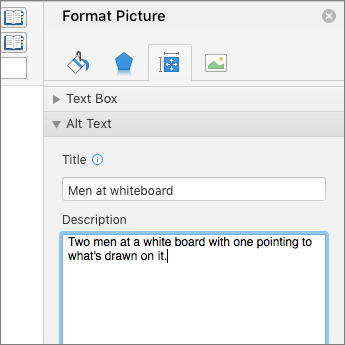
Add alt text to images
Add alt text to images, such as pictures, clip art, and screenshots, so that screen readers can read the text to describe the image to users who can't see the image.
-
Right-click an image.
-
Select Format Picture > Layout & Properties.
-
Select Alt Text.
-
Type a description and a title.
Tip: Include the most important information in the first line, and be as concise as possible.
Add alt text to tables
-
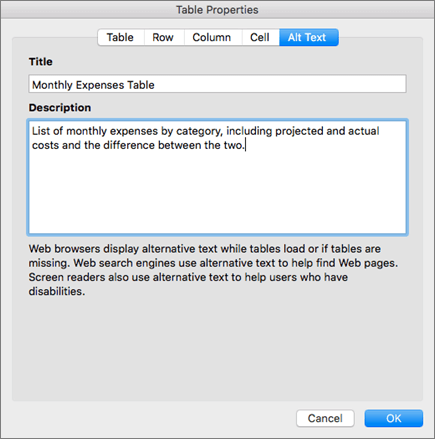
Right-click a table.
-
Select Table Properties.
-
Select the Alt Text tab.
-
Type a description and a title.
Tip: Include the most important information in the first line, and be as concise as possible.
Make hyperlinks, text, and tables accessible
The following procedures describe how to make the hyperlinks, text, and tables in your Outlook email accessible.
Add hyperlink text and ScreenTips
-
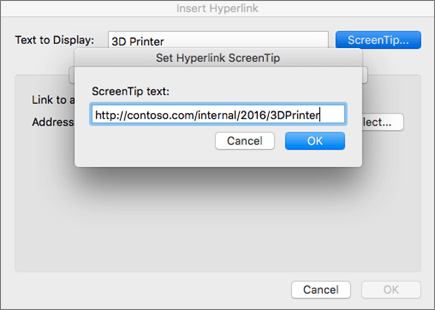
Select the text to which you want to add the hyperlink, and then select Add a Hyperlink.
The text you selected displays in the Text to Display box. This is the hyperlink text. -
If necessary, change the hyperlink text.
-
In the Address box, type the destination URL.
-
Select the ScreenTip button and, in the ScreenTip text box, type a ScreenTip.
Tip: If the title on the hyperlink's destination page gives an accurate summary of what's on the page, use it for the hyperlink text. For example, this hyperlink text matches the title on the destination page: Templates and Themes for Office Online.
Use accessible font format
-
Select your text.
-
Select the Message tab.
-
In the Font group, which provides options for font type, size, style, and color, select your formatting choices.

Use accessible font color
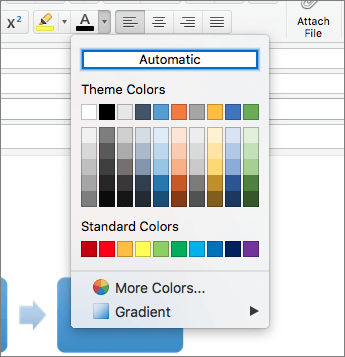
To ensure that text displays well in High Contrast mode, use the Automatic setting for font colors.
-
Select your text.
-
Select Message > Font Color.
-
Select Automatic.
Use bulleted lists styles
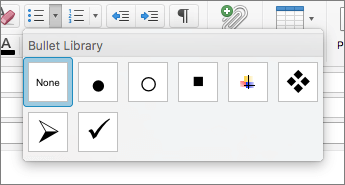
Create bulleted lists by using the Bullets button.
-
Position the cursor anywhere in your email.
-
Select the Message tab.
-
In the Paragraph group, select the Bullets button.
-
Type each bullet item in the bulleted list.
Use ordered lists
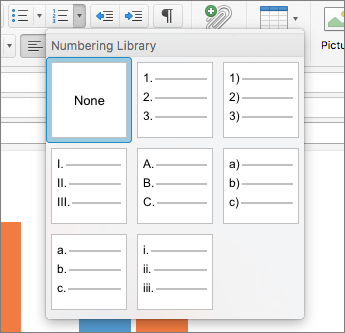
Create sequential steps by using the Numbering button.
-
Position the cursor anywhere in your email.
-
Select the Message tab.
-
In the Paragraph group, select the Numbering button.
-
Type the sequential steps.
Adjust space between sentences and paragraphs
Increase or decrease white space between sentences and paragraphs.
-
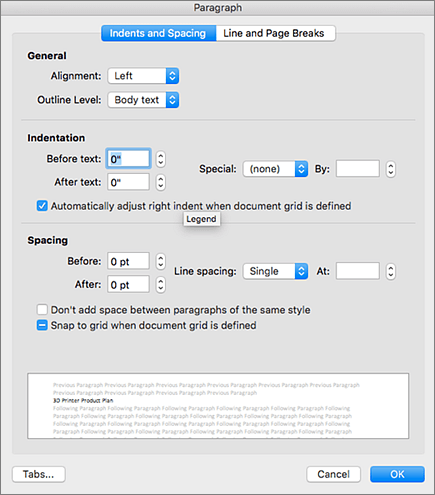
Select your text, right-click it, and then select Paragraph.
The Paragraph dialog box opens, showing the Indents and Spacing tab.
-
Under Spacing, select the spacing options you want.
Use table headers
Specify a header row in a table.
-
Position the cursor anywhere in a table.
-
On the Table Design tab, select the Header Row check box.
-
Type column headings.

See also
Rules for the Accessibility Checker
Make your Word documents accessible
iOS app: Best practices for making Outlook email accessible
The following table includes key best practices for creating an Outlook for iOS email that is accessible to people with disabilities.
| What to fix | Why fix it | How to fix it |
| Include alternative text with pictures. | Alternative text helps people who can't see the screen to understand what's important in images and other visuals. Avoid using text in images as the sole method of conveying important information. If you must use an image with text in it, repeat that text in the document. In alternative text, briefly describe the image and mention the existence of the text and its intent. | |
| Add meaningful hyperlink text. | People who use screen readers sometimes scan a list of links. Links should convey clear and accurate information about the destination. For example, instead of linking to the text Click here, include the full title of the destination page. |
Add alternative text to images
Add alternative text to images, such as pictures and screenshots, so that screen readers can read the text to describe the image to readers who can't see the image.
-
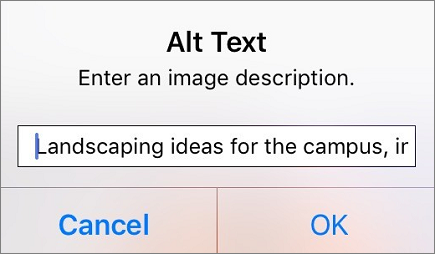
In the email you are composing, double-tap an image to open the context menu.
-
In the context menu, tap Alt Text.
-
Type a description.
Tip: Include the most important information in the first line, and be as concise as possible.
-
To add the text and exit the dialog, tap OK.
Add hyperlink text
Add a meaningful hyperlink text to help screen reader users easily scan your email for links.
-
In the email you are composing, select the text to which you want to add the hyperlink.
-
To open the context menu, tap the selected text.
-
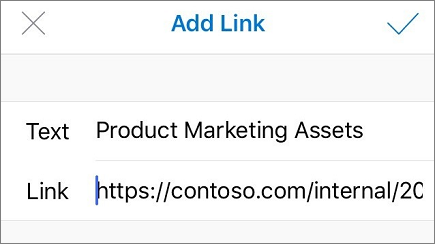
If necessary, at the end of the menu, tap
 until the Add Link button is displayed. Tap the Add Link button.
 -
If necessary, change the hyperlink text in the Text field.
-
In the Link field, type the destination URL.
-
To insert the hyperlink, tap
 .
.
Tip: If the title on the hyperlink's destination page gives an accurate summary of what's on the page, use it for the hyperlink text. For example, this hyperlink text matches the title on the destination page: Templates and Themes for Office Online.
See also
Rules for the Accessibility Checker
Make your Word documents accessible
Android app: Best practices for making Outlook email accessible
The following table includes the key best practice for creating an Outlook for Android email that is accessible to people with disabilities.
| What to fix | Why fix it | How to fix it |
| Add meaningful hyperlink text. | People who use screen readers sometimes scan a list of links. Links should convey clear and accurate information about the destination. For example, instead of linking to the text Click here, include the full title of the destination page. |
Add hyperlink text
Add a meaningful hyperlink text to help screen reader users easily scan your email for links.
-
In the email you are composing, select the text to which you want to add the hyperlink. The context menu opens.
-
Tap the ADD LINK button.
-
If necessary, change the hyperlink text in the Text to display field.
-
In the Link field, type the destination URL.
-
To insert the hyperlink, tap the SAVE button.
Tip: If the title on the hyperlink's destination page gives an accurate summary of what's on the page, use it for the hyperlink text. For example, this hyperlink text matches the title on the destination page: Templates and Themes for Office Online.

See also
Rules for the Accessibility Checker
Make your Word documents accessible
Windows 10 app: Best practices for making Outlook email accessible
The following table includes key best practices for creating an Outlook email that is accessible to people with disabilities.
| What to fix | Why fix it | How to fix it |
| Include alternative text with pictures and tables. | Alternative text helps people who can't see the screen to understand what's important in images and other visuals. Avoid using text in images as the sole method of conveying important information. If you must use an image with text in it, repeat that text in the document. In alternative text, briefly describe the image and mention the existence of the text and its intent. | |
| Add meaningful hyperlink text. | People who use screen readers sometimes scan a list of links. Links should convey clear and accurate information about the destination. For example, instead of linking to the text Click here, include the full title of the destination page. | |
| Ensure that color is not the only means of conveying information. | People who are blind, have low vision, or are colorblind might miss out on the meaning conveyed by particular colors. For example, add an underline to color-coded hyperlink text so that people who are colorblind know that the text is linked even if they can't see the color. For headings, consider adding bold or using a larger font. | |
| Use sufficient contrast for text and background colors. | The text in your email should be readable in High Contrast mode so that everyone, including people with visual disabilities, can see it well. For example, use bright colors or high-contrast color schemes on opposite ends of the color spectrum. White and black schemes make it easier for people who are colorblind to distinguish text and shapes. | |
| Use a larger font size (11pt or larger), sans serif fonts, and sufficient white space. | People who have dyslexia describe seeing text "swim together" on a page (the compressing of one line of text into the line below). They often see text merge or distort. For people who have dyslexia or low vision, reduce the reading load. For example, they may benefit from familiar sans serif fonts such as Arial or Calibri. Avoid using all capital letters and excessive italics or underlines. Include ample white space between sentences and paragraphs. | |
| Use built-in headings and styles. | To preserve tab order and to make it easier for screen readers to read your email, use a logical heading order and the built-in formatting tools in Outlook. For example, organize headings in the prescribed logical order. Use Heading 1, Heading 2, and then Heading 3, rather than Heading 3, Heading 1, and then Heading 2. And, organize the information in your email into small chunks. Ideally, each heading would include only a few paragraphs. | |
| Use a simple table structure, and specify column header information. | Screen readers keep track of their location in a table by counting table cells. If a table is nested within another table or if a cell is merged or split, the screen reader loses count and can't provide helpful information about the table after that point. Blank cells in a table could also mislead someone using a screen reader into thinking that there is nothing more in the table. Screen readers also use header information to identify rows and columns. |
Add alternative text to visuals and tables
The following procedures describe how to add alternative text to visuals and tables in your Outlook email.
Note: We recommend only putting text in the description field and leaving the title blank. This will provide the best experience with most screen readers including Narrator. For audio and video content, in addition to alt text, include closed captioning for people who are deaf or have limited hearing.
Add alternative text to images
Add alternative text to images, such as pictures and screenshots, so that screen readers can read the text to describe the image to readers who can't see the image.
-
In the email you're composing, select an image.
-
To open the editing options ribbon at the bottom of the screen, tap the ... (More options) button .
-
Scroll down to the Picture button, and then tap it.
-
Scroll down to the Alt Text button, and then tap it.
-
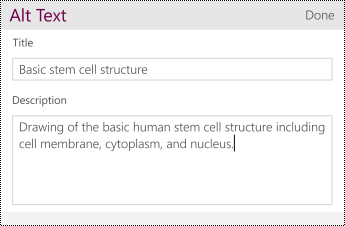
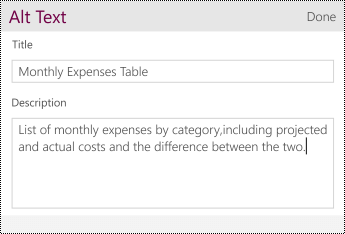
Type a description and a title.
Tip: Include the most important information in the first line, and be as concise as possible.
-
To add the text and exit the dialog, tap Done.
Add alternative text to tables
Adding alternative text to tables helps readers who can't see identify what the table is all about.
-
In the email you're composing, select a table.
-
To open the editing options ribbon at the bottom of the screen, tap the ... (More options) button.
-
Scroll down to the Table button, and then tap it.
-
Scroll down to the Alt Text button, and then tap it.
-
Type a description and a title.
Tip: Include the most important information in the first line, and be as concise as possible.
-
To add the text and exit the dialog, tap Done.
Make hyperlinks, text, and tables accessible
The following procedures describe how to make the hyperlinks, text, and tables in your Outlook email accessible.
Add hyperlink text
Add a meaningful hyperlink text to help screen reader users easily scan your email for links.
-
In the email you're composing, select the text to which you want to add the hyperlink.
-
To open the editing options ribbon at the bottom of the screen, tap the ... (More options) button.
-
Scroll down to the Insert button, and then tap it.
-
Scroll down to the Link button, and then tap it.
-
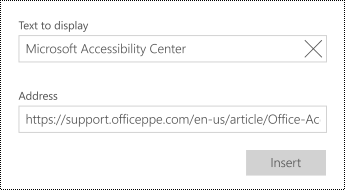
If necessary, change the hyperlink text in Text to display field.
-
In the Address text field, type the destination URL.
-
To insert the hyperlink, tap Insert.
Tip: If the title on the hyperlink's destination page gives an accurate summary of what's on the page, use it for the hyperlink text. For example, this hyperlink text matches the title on the destination page: Templates and Themes for Office Online.
Use accessible font format
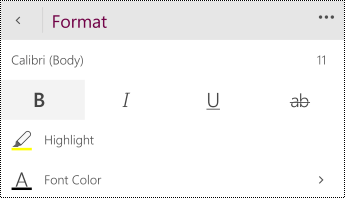
Use a familiar font type and large enough font size to help people who have dyslexia or have low vision read your email more easily.
-
In the email you're composing, select the text.
-
To open the editing options ribbon at the bottom of the screen, tap the ... (More options) button.
-
Scroll down to the Format button, and then tap it.
-
In the Format menu, select the font type, size, and formatting you want.
Use accessible font color
To ensure that text displays well in High Contrast mode, use the Automatic setting for font colors.
-
In the email you're composing, select the text.
-
To open the editing options ribbon at the bottom of the screen, tap the ... (More options) button.
-
Scroll down to the Format button, and then tap it.
-
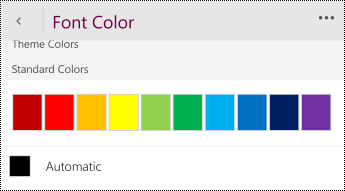
In the Format menu, scroll down to the Font Color button, and then tap the > button to open the submenu.
-
In the Font Color menu, scroll down to Automatic, and then tap it.
Use built-in headings and styles
The pre-designed headings and styles make it easier for screen readers to read your email.
-
Position the cursor anywhere in the email you're composing.
-
To open the editing options ribbon at the bottom of the screen, tap the ... (More options) button.
-
Scroll down to the Format button, and then tap it.
-
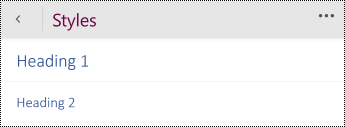
In the Format menu, scroll down to the Styles button, and then tap it.
-
In the Styles menu, scroll down to Heading 1 or Heading 2, and then tap it.
Use bulleted lists
Create bulleted lists to add structure to your text.
-
Position the cursor anywhere in the email you're composing.
-
To open the editing options ribbon at the bottom of the screen, tap the ... (More options) button.
-
Scroll down to the Format button, and then tap it.
-
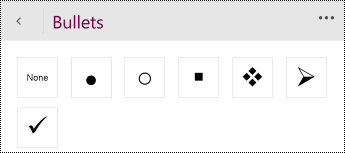
In the Format menu, scroll down to the Bullets button, and then tap it.
-
In the Bullets menu, select the bullet type you want.
-
Type the text for the bulleted item. To add a new bulleted line, tap Enter on the on-screen keyboard. To end the list, press Enter twice.
Use ordered lists
Create ordered lists to organize your text into sequential steps.
-
Position the cursor anywhere in the email you're composing.
-
To open the editing options ribbon at the bottom of the screen, tap the ... (More options) button.
-
Scroll down to the Format button, and then tap it.
-
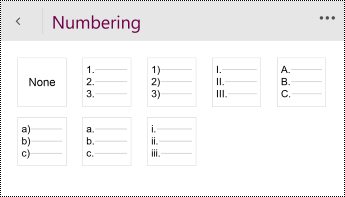
In the Format menu, scroll down to the Numbering button, and then tap it.
-
In the Numbering menu, select the ordered list type you want.
-
Type the text for the numbered item. To add a new numbered line, tap Enter on the on-screen keyboard. To end the list, press Enter twice.
Adjust space between sentences and paragraphs
Increase or decrease white space between sentences and paragraphs.
-
In the email you're composing, select the text.
-
To open the editing options ribbon at the bottom of the screen, tap the ... (More options) button.
-
Scroll down to the Format button, and then tap it.
-
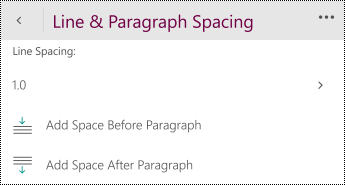
In the Format menu, scroll down to the Line & Paragraph Spacing button, and then tap it.
-
In the Line & Paragraph Spacing menu, select the line and paragraph spacing options you want.
Use table headers
Specify a header row in a table.
-
In the email you're composing, position the cursor anywhere in a table.
-
To open the editing options ribbon at the bottom of the screen, tap the ... (More options) button.
-
Scroll down to the Table button, and then tap it.
-
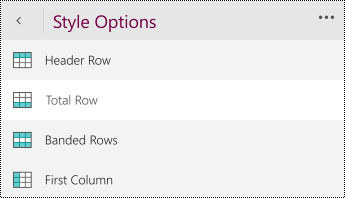
In the Table menu, scroll down to the Style Options button, and then tap it.
-
In the Style Options menu, select the Header Row option.
-
Type column headings.
See also
Web: Best practices for making Outlook email accessible
The following table includes key best practices for creating Outlook email that is accessible to people with disabilities.
| What to fix | Why fix it | How to fix it |
| Include alternative text with all visuals. | Alt text helps people who can't see the screen to understand what's important in images and other visuals. Avoid using text in images as the sole method of conveying important information. If you must use an image with text in it, repeat that text in the document. In alt text, briefly describe the image and mention the existence of the text and its intent. | |
| Add meaningful hyperlink text. | People who use screen readers sometimes scan a list of links. Links should convey clear and accurate information about the destination. For example, instead of linking to the text Click here, include the full title of the destination page. | |
| Ensure that color is not the only means of conveying information. | People who are blind, have low vision, or are colorblind might miss out on the meaning conveyed by particular colors. For example, add an underline to color-coded hyperlink text so that people who are colorblind know that the text is linked even if they can't see the color. For headings, consider adding bold or using a larger font. | |
| Use sufficient contrast for text and background colors. | The text in your email should be readable in High Contrast mode so that everyone, including people with visual disabilities, can see it well. For example, use bright colors or high-contrast color schemes on opposite ends of the color spectrum. White and black schemes make it easier for people who are colorblind to distinguish text and shapes. | |
| Use a larger font size (11pt or larger), sans serif fonts, and sufficient white space. | People who have dyslexia describe seeing text "swim together" on a page (the compressing of one line of text into the line below). They often see text merge or distort. For people who have dyslexia or have low vision, reduce the reading load. For example, they may benefit from familiar sans serif fonts such as Arial or Calibri. Avoid using all capital letters and excessive italics or underlines. Include ample white space between sentences and paragraphs. | |
| Use built-in headings and styles. | To preserve tab order and to make it easier for screen readers to read your email, use a logical heading order and the built-in formatting tools in Outlook. For example, organize headings in the prescribed logical order. Use Heading 1, Heading 2, and then Heading 3, rather than Heading 3, Heading 1, and then Heading 2. And, organize the information in your email into small chunks. Ideally, each heading would include only a few paragraphs. | |
| Use a simple table structure. | Screen readers keep track of their location in a table by counting table cells. If a table is nested within another table or if a cell is merged or split, the screen reader loses count and can't provide helpful information about the table after that point. Blank cells in a table could also mislead someone using a screen reader into thinking that there is nothing more in the table. | |
| Check your email for accessibility issues. | When you're composing an email to a contact who prefers accessible content, you receive a reminder of this and link to the Accessibility checker. You can quickly check your email for possible accessibility issues, fix them, and make sure that your contact can easily read your email with a screen reader. |
Add alt text to images
Add alt text to images, such as pictures and screenshots, so that screen readers can read the text to describe the image to users who can't see the image.
Note: We recommend only putting text in the description field and leaving the title blank. This will provide the best experience with most screen readers including Narrator.
-
When you're composing an email, right-click an image. A context menu opens.
-
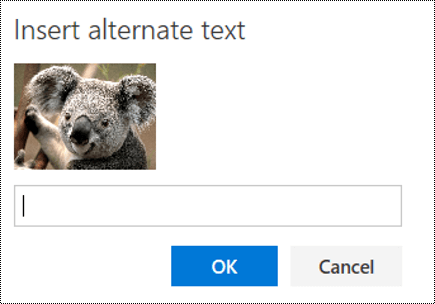
In the menu, select Insert alt text.
-
Type a description (and a title).
Make hyperlinks and text accessible
The following procedures describe how to make the hyperlinks, text, and tables in your Outlook email accessible.
Add a meaningful hyperlink text
Instead of displaying the URL as the link text, type a meaningful hyperlink text.
-
When you're composing an email, type a link text in the message body.
-
Select the link text, and then press Ctrl+K. The Insert link dialog opens.
-
In the URL box, type the destination URL.
Use accessible font format
Use a familiar font type and large enough font size to help people who have dyslexia or have low vision read your email more easily.
-
Select your text.
-
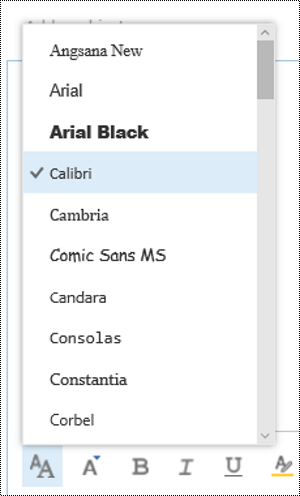
To change the font type, press Ctrl+Shift+F.
-
In the Font menu, select font type you want.
-
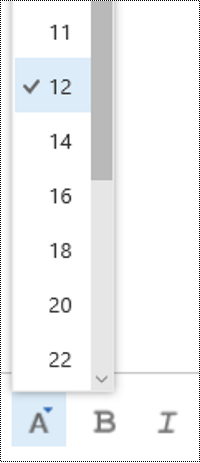
To change the font size, press Ctrl+Shift+S.
-
In the Font size menu, select size you want.
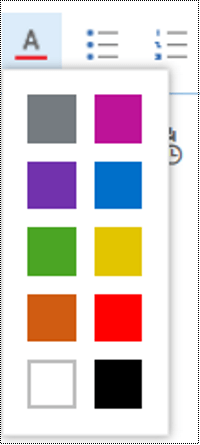
Use accessible font color
To ensure that text displays well in High Contrast mode, use black for the font color.
-
Select your text.
-
Press Ctrl+Shift+C.
-
In the Font color menu, select the color you want.
Use bulleted lists
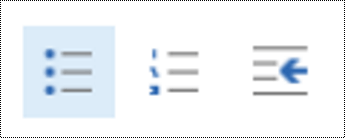
Create bulleted lists to add structure to your text.
-
Place the cursor anywhere in your email.
-
In the toolbar, click the Bullets icon.
-
Type each bullet item in the bulleted list.
Use ordered lists
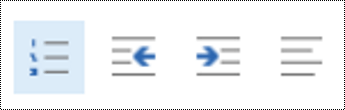
Create ordered lists to organize your text into sequential steps.
-
Place the cursor anywhere in your email.
-
In the toolbar, click the Numbering icon.
-
Type each numbered item in the list.
Insert a simple table
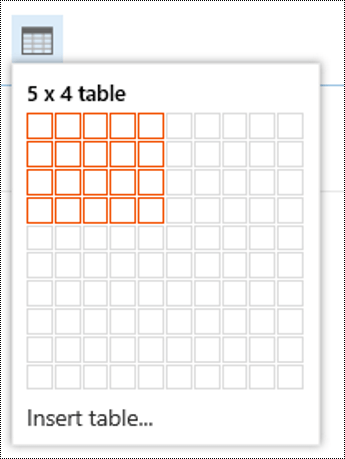
Adding tables inside tables or leaving cells empty may make your emails difficult to read with a screen reader. Consider using simple tables that make it easier for the screen readers to identify the table, rows, and columns.
-
Place the cursor anywhere in your email.
-
In the toolbar, click the Insert table icon.
-
In the Insert table grid, highlight the area of rows and columns to be added, and then click in the area to select and add it.
Check your email for accessibility issues
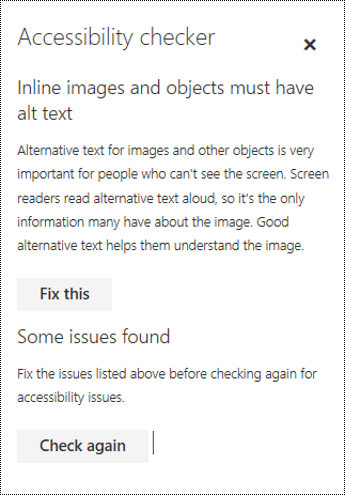
In Outlook Web App, users can request accessible content. Whenever you add such a user as a recipient for an email, you receive a notification that they prefer accessible content, and a link to the accessibility checker. If the checker finds any accessibility issues in the email, the issues will be listed, along with instructions on how to fix them.
-
When you've composed your email, select the Check for accessibility issues link above the message body field.
You may need to click the More actions icon before you can access the Check for accessibility issues link.
-
The Accessibility checker opens and lists issues with accessibility (if any).
-
Read through the list, revise the email content, and then click the Check again button in the Accessibility checker.
-
Repeat the steps until no issues are found, and then send your email.
See also
Rules for the Accessibility Checker
Make your Word documents accessible
Technical support for customers with disabilities
Microsoft wants to provide the best possible experience for all our customers. If you have a disability or questions related to accessibility, please contact the Microsoft Disability Answer Desk for technical assistance. The Disability Answer Desk support team is trained in using many popular assistive technologies and can offer assistance in English, Spanish, French, and American Sign Language. Please go to the Microsoft Disability Answer Desk site to find out the contact details for your region.
If you are a government, commercial, or enterprise user, please contact the enterprise Disability Answer Desk.


 .
.