Using the calendar in Outlook.com
By using Outlook.com, you can create, change, delete, and share calendar events. You can also import calendars from your friends or colleagues or link to those on the web.
Create a calendar event
-
In Outlook.com, select Calendar at the bottom of the page.

-
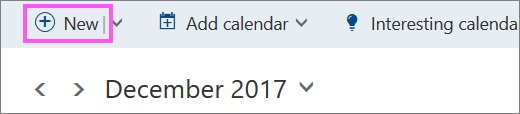
At the top of the page, select New.
-
Add a title, location, and start and end dates and times.
-
The following steps are optional:
-
If it's an all day event, select the All day check box.
-
When you don't want others to see the details of a calendar event, select the Private check box.
-
To make this a recurring event, in the Repeat drop-down menu, choose how often you want it to take place, and in the From and To drop-down menus, set the dates that you want the recurring event to begin and end.
-
In the Reminder drop-down menu, choose when to remind participants about that the event.
Note: Select Add an email reminder to send an email reminder to yourself or to the participants.
-
-
Under People, enter the names or email addresses of the people you want to invite.
-
At the top of the page, select Save (if the event is just for you) or Send (if you're inviting attendees).
For information on how to attach a file to your invitation, see Attach files in Outlook.com.
Change or delete a calendar event
-
In Outlook.com, select Calendar at the bottom of the page.
-
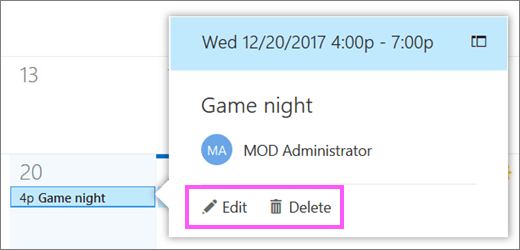
Select the calendar event you want to edit or delete, choose Edit or Delete.
-
If the event is part of a series, do one of the following:
-
To open and makes changes to a calendar event, click Open occurrence.
-
To open and makes changes to a series of calendar events, click Open series.
-
To delete a calendar event, click Delete occurrence.
-
To delete a series of calendar events, click Delete series.
-
-
At the top of the page, select Save (if the event is just for you) or Send (if you're inviting attendees).
Share your calendar
-
In Outlook.com, select Calendar at the bottom of the page.
-
In the left pane, select a calendar.
-
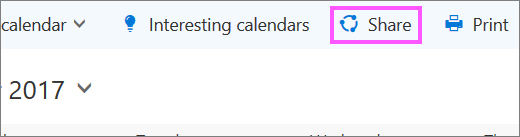
At the top of the page, select Share.
-
Enter the name or email address of the person you want to share your calendar with, and press Enter.
-
In the drop-down menu below, choose what you want the people you're sharing with to see and do with your calendar, and then select Share.
Note: The person you're sharing your calendar with will receive a sharing invitation in email.
Import a calendar
Follow the procedures below for the calendar you want to import.
Import a static calendar
-
In Outlook.com, select Calendar at the bottom of the page.
-
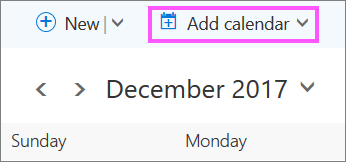
At the top of the page, select Add calendar.
-
Select From file > Browse, choose an .ics file, and select Open.
-
Select
 Save.
Save.
Link to a calendar on the internet
-
In Outlook.com, select Calendar at the bottom of the page.
-
At the top of the page, select Add calendar.
-
Select From internet, and in the Link to the calendar box, type or copy and paste the web address of the calendar. (For example, iCalShare maintains thousands of calendars on their website.)
-
In the Calendar name box, enter a name for the linked calendar.
Still need help?



No comments:
Post a Comment