Organize your slides into sections
By using sections, you can organize many slides into manageable groups. If you are working with many slides or collaborating with other people to create a presentation, you can use sections to quickly change the order of slides, or to group slides by author.
Note: You can add or change the order of sections in slide sorter view, or in the navigation pane in normal view. However, sections do not appear in outline view.
Add a section
-
In Normal view, in the navigation pane, click the slide that will be the first slide of the section.
-
On the Home tab, under click Section
 , and then click Add Section.
 -
In the Section Name box, enter a name for the section, and then click Rename.
-
To add more sections, select a new starting slide for the new section and repeat steps 2 and 3.

The names you enter appear as headers above each section, followed by the number of slides in each section in parentheses.
Tip: Click the arrows next to the section names to collapse and expand sections.
Change the order of sections
-
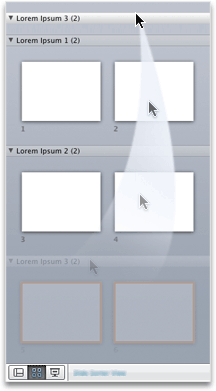
In Normal view or Slide Sorter view, drag the section title to where you want it—for example, move the third section before the first section.
Change the name of a section
-
In Normal view or Slide Sorter view, double-click the section name and enter a new name in the Section Name box.
Add a section
-
In the navigation pane, click the slide that will be the first slide of the section.
How to select slides in the navigation pane
-
On the View menu, click Normal.
-
In the top of the navigation pane, click the Slides
 tab, and then click a slide.Depending on the width of the navigation pane, you will either see the
  and
and  named tabs or the Slides and Outline
  icon tabs.
-
-
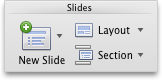
On the Home tab, under Slides, click Section.
-
Click Add Section.
-
In the Section Name box, enter a name for the section, and then click Rename.
Change the order of sections
-
On the View menu, click Slide Sorter.
-
Drag the section title to where you want it — for example, move the third section before the first section.
Change the name of a section
-
In the navigation pane, click the section.
How to select slides in the navigation pane
-
On the View menu, click Normal.
-
In the top of the navigation pane, click the Slides
tab, and then click a slide.Depending on the width of the navigation pane, you will either see the and named tabs or the Slides and Outline icon tabs.
-
-
On the Home tab, under Slides, click Section.
-
Click Rename Section.
-
In the Section Name box, enter a name for the section, and then click Rename.

No comments:
Post a Comment