Require a password to open or modify a workbook
You can help prevent unauthorized users from opening or modifying a workbook file, even if they have permission to open it.
Caution: When you create a password for a workbook, write down the password and keep it in a secure place. If you lose the password, you can't open or gain access to the password-protected workbook.Passwords in Excel for Mac and Word for Mac have a 15-character limit. You cannot open a workbook or document that has been password protected in the Windows-based version of Excel or Word if the password is longer than fifteen characters. If you want to open the file in Office for Mac, ask the Windows-based author to adjust the password length.
Do any of the following:
Require a password to open a workbook
-
Open the workbook that you want to protect.
-
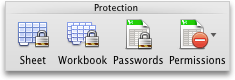
On the Review tab, under Protection, click Passwords.
-
In the Password to open box, type a password, and then click OK.
-
In the Confirm Password dialog box, type the password again, and then click OK.
-
Click Save
 .
.Tip: To remove a password, select all contents in the Password to open box, and then press DELETE .
Require a password to modify a workbook
You can add a password so that only authorized users can make changes to a workbook. Users who are not authorized can still open the workbook and then save it by using a different file name.
Note: Unlike workbook element protection, which prevents changes to the structure and windows of a workbook, workbook-level password security helps protect the entire file against unwanted changes..
-
Open the document that you want to help protect.
-
On the Review tab, under Protection, click Passwords.
-
In the Password to modify box, type a password, and then click OK.
-
In the Confirm Password dialog box, type the password again, and then click OK.
-
Click Save
.Tip: To remove a password, select all contents in the Password to modify box, and then press DELETE .

No comments:
Post a Comment