Open an application from within a presentation
You can open an application — for example, Word or iPhoto — during a presentation. You can set the application to open by prompting from text or an action button.
Note: If you do not want to show the computer desktop or application to the audience, on the PowerPoint menu, click Preferences, click View, and then clear the Always mirror displays when switching to another view or application check box.
Do any of the following:
Use text to open an application
-
On the slide, select the text.
-
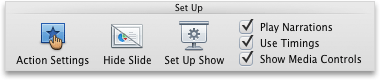
On the Slide Show tab, under Set Up, click Action Settings.
-
In the Action Settings dialog box, select how to initiate the action by doing one of the following:
| To open an applic ation | Click |
| When you click the text | The Mouse Click tab |
| When you rest the mouse pointer on the text | The Mouse Over tab |
-
Click Run program, click Select, and then double-click the application that you want.
Add an action button that opens an application
-
Select the slide that you want to add the action button to.
-
On the Home tab, under Insert, click Shape, point to Action Buttons, and then click the action button that you want.

Tip: Any object such as a picture or text can be an action button. To create an action button, select the object. On the Slide Show tab, under Set Up, click Action Settings.
-
Drag across the location in the slide where you want the button to appear.
Tip: To change the size of the action button, drag a corner until the button is the size that you want. To keep the button width and height proportions the same, hold down SHIFT as you drag.
-
In the Action Settings dialog box, select how to initiate the action by doing one of the following:
| To open an application | Click |
| When you click the action button | The Mouse Click tab |
| When you rest the mouse pointer on the action button | The Mouse Over tab |
-
Click Run program, click Select, and then double-click the application that you want.

No comments:
Post a Comment