Excel for Android touch guide
If you're new to touch devices, learning a few gestures will help you take maximum advantage of the touch capabilities.
Moving around in a file
| To… | Do this… | Gestures |
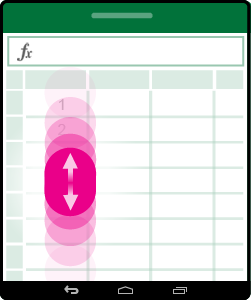
| Scroll | Touch the screen and slide your finger and up and down, left and right. To quickly scroll through large worksheets, either horizontally or vertically, grab the scroll handle | |
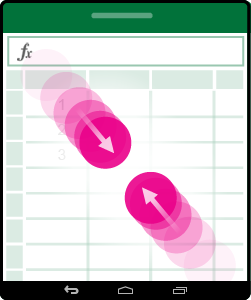
| Zoom in | Stretch two fingers apart. | |
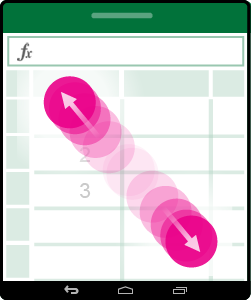
| Zoom out | Pinch two fingers together. | |
 .
.
Making a selection
| To… | Do this… | Gestures |
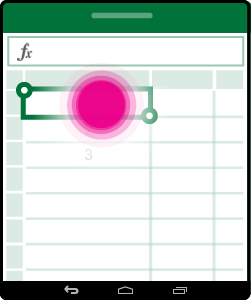
| Select a cell | Tap a cell. | |
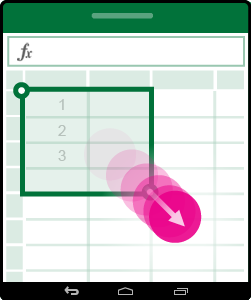
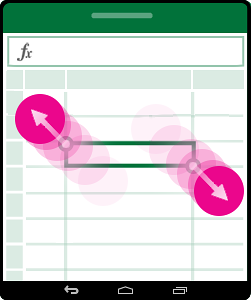
| Select multiple cells | Tap, then drag the selection handler. | |
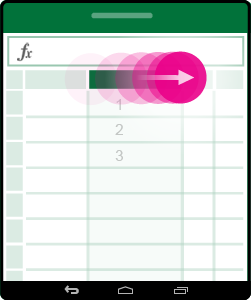
| Quickly select all cells with content | Tap on a cell, and then flick the selection handle in the direction you want to select. | |
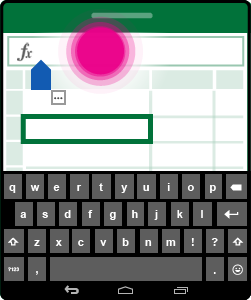
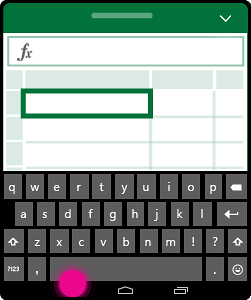
| Place the cursor | Tap in the formula bar. | |
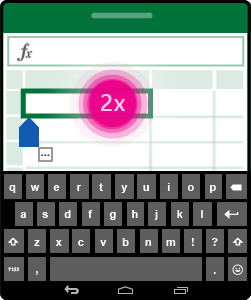
| Add or edit cell contents | Double-tap the cell, or tap in the formula bar. | |
| Hide the onscreen keyboard | Tap the Back key. | |
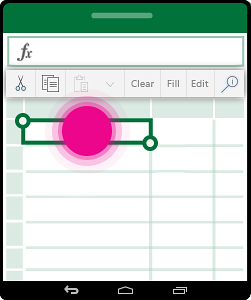
| Open the contextual menu for a cell | Double-tap the cell, or, tap and hold on the cell. | |
Working with columns or rows
| To… | Do this… | Gestures |
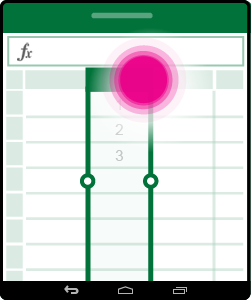
| Select or edit a column or row | Tap the column or row heading. | |
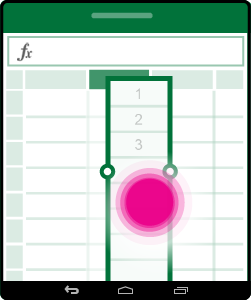
| Move one or more cells, or a column or row | Tap and hold a selected column or row and then drag the selected data wherever you like. | |
| Resize a column or row | Tap and drag the column or row heading from the double line indicator at the edge. | |

No comments:
Post a Comment