Add a border to a page
You can put a border around just one page if that page is at the beginning of a document or a section. If the page is in the middle of your document, you must first add a section break.
Add a border to a page
-
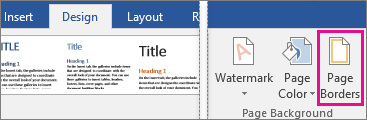
To add the border, click Design > Page Borders.
-
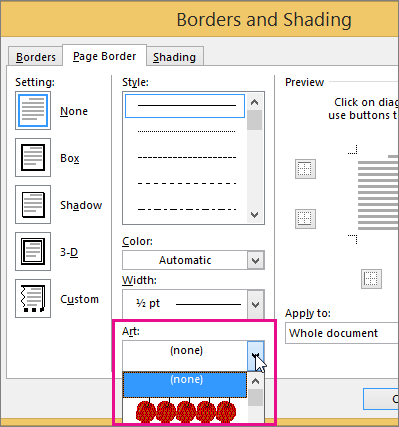
In the Borders and Shading box, use the Page Border tab to design your border:
-
Under Setting, click the border style you want to use.
-
Scroll through the options under Style and select a line style.
-
Click the arrow under Color and select a border color.
-
Click the arrow under Width and select the width.
If you want to use a clip art border instead, click the arrow under Art and select a border graphic.
-
-
Next, click the arrow under Apply to and choose This section - First page only.
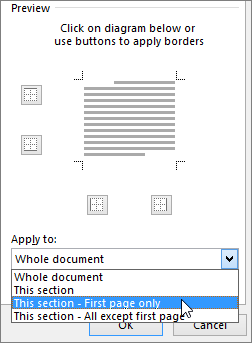
This setting also works if you're adding the border to the first page in your document.
-
The Preview box confirms your border styles. To remove the border from one side, click that line in the Preview box.
Tip: To change where the border appears on the page, click Options, and then adjust the margin settings.

No comments:
Post a Comment