Basic POP account settings in Outlook 2016 for Mac
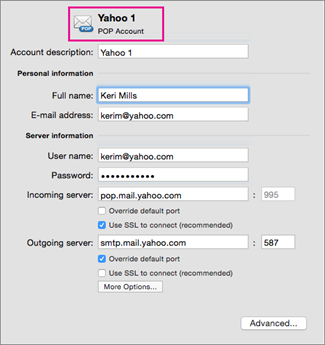
Use the settings in the table below to help you add a POP account in the Outlook 2016 for Mac Accounts box.
| Option | Description |
| Account description | This is how your account is labeled in Outlook. You can give the account any name that is helpful to you. |
| Full name | This is how your name appears in the From field of e-mail messages that you send. |
| Email address | You must type your complete e-mail address, such as someone@example.com. |
| User name | Depending on your e-mail provider, this is usually either your full e-mail address or the part of your e-mail address before the "@" symbol. |
| Password | This is the password for your account. Usually this password is usually case-sensitive. |
| Incoming server | The incoming mail server for a POP account may also be called the POP, or POP3, server. For example, if your email provider is example.com, the incoming mail server is likely pop3.example.com. |
| Override default port | To be able to edit the port number that follows the server address, select this check box. |
| Use SSL to connect (recommended) | Secure Sockets Layer (SSL) is an encryption technology that helps improve the security of the account. |
| Outgoing server | This server sends your messages. It may also be called the SMTP server. For example, if your email provider is example.com, the outgoing mail server is likely smtp.example.com. |
| Override default port | To be able to edit the port number that follows the server address, select this check box. |
| Use SSL to connect (recommended) | Secure Sockets Layer (SSL) is an encryption technology that helps improve the security of the account. |
| More Options | Click the More Options button to enter authentication for the outgoing server, or to set an unqualified domain. |
Tip: For steps on how to set up an initial account or add more accounts, Set up Outlook on your Mac.

No comments:
Post a Comment